

I used 1.54 MCHv for 515FSB with a 7 multi and about 1.46v (i think) for 500FSB.



I used 1.54 MCHv for 515FSB with a 7 multi and about 1.46v (i think) for 500FSB.
Originally Posted by oniL

Yes, Boards with the P in the name have TPM, there is a few without a P as well >>>
* GA: Gigabyte
* E: Energy saving technology
* P45: Chipset
* D: Ultra Durable 2 (low rds mosfet, ferrite core chokes, all solid capacitors)
* UD: Ultra Durable 3 (2oz Copper in PCB, low rds mosfet, ferrite core chokes, all solid capacitors)
* L: Lite "lite" or entry level. For example, the DS3L has only 3-phase power or another example Only one PCIe x16
* R: RAID The R version(s) have RAID, & are "mainstream" level
* S3 Stands for Speed-Smart-Safe
* S4: Adds silent pipe cooling
* S5: Includes smart backup (Including all of S4's features)
* P: Includes TPM. The P version(s)are "pro" or high level, with more ports etc (P45 DS3R, DS4P, DS5, DQ6 also have TPM support)
* Q: Gigabyte Flagship product with all features included
Last edited by Lsdmeasap; 12-30-2008 at 09:28 PM.


Got the second board today and have the same exact problem, MCH Core above 1.48v = no boot, black screen or boop loop trying to recover.
All I can think of is the weak PSU 520w not enough for it.
So strange.
//RETIRED-o00o--°(_)°--o00o-OVERCLOCKER//
nvm, how could I've been so stupid to leave pci freq on auto.
btw, finished reading through the first 20 pages of this thread and very nice oc on your q6600 fatguy1992
Last edited by LiquidReactor; 12-31-2008 at 02:25 AM.
Well i'v run 1.6v and its booted fine.
PS I have a TT Toughpower Qfan 750watt.
@fatguy, thanks i will do some more testing later on, right now i have 356x9 with stock 1.1 MCH and well my vcore is 1.44 underload(bad chip). When you guys use a low multiplier and a high FSB is that done to Oc the Ram and run the rest of the system at higher speeds or is it just better to use highest FSB and low multi.
Q6600 VID 1.32
GA-EP45-UD3P
Silverstone ST70F
BFG 260GTX 216
G.Skill ddr2 800
Win 7 64 bit
I will test on a Silverstone 1000W today and settle this strange matter.
Now I also noticed that raisin vcore voltage in ET6 will cause it to reset to default voltage, so I can't even raise any voltages from ET6 anymore.
//RETIRED-o00o--°(_)°--o00o-OVERCLOCKER//
I haven't seen much discussion on this subject.....what setting are you using now for PCI Freq?
I have mine set @ 105, but when I bench 3D I raise it quite a bit.
It shouldn´t be a problem to leave it at auto, auto sets it to 100, if you want to be on the safe side set it to 100.
Asus P8Z68 Deluxe / i7 2600K / 2x4GB G.Skill RipjawsX 1600C8 / EVGA GTX 580 SC SLI
Asus Crosshair V Formula-Z / FX8350 / G.Skill TridentX 2400C10 / GTX690
Hi guys.,Happy New Year to all the ocer's around the world..i want to make this setting for my 24/7 use.,is it ok? i cool the ram with Corsair Dominator Airflow Cooler for 2.1v..
Core i7 860 4200Mhz > Asus Maximus III Formula > Corsair Dominator GT 2x2GB 2000 8-9-8-24 > 2x60GB Corsair Force F60 Raid-0 SSD > Samsung Spinpoint 1TB F3 > HIS HD5970 2GB DDR5 > Silverstone TJ-07 > Corsair HX620 PSU > Dell S2409W > Windows 7 Ultimate x64 > EK Supreme HF > Danger Den 5970 Full Copper > EK FB Maximus III Formula > EK RAM Dominator GT > Laing DDC 3.2 + EK X-Top V2 > TFC XChanger 480 > EK Multioptions X2 Advance 250 > Tygon R3603 Tubing > Bitspower Fittings > Lamptron FC Touch
Nice OC for a 24/7
Is it stable with Prime blend and LinX?
Happy New Year
Last edited by Ghostleader; 12-31-2008 at 10:38 AM.
Asus P8Z68 Deluxe / i7 2600K / 2x4GB G.Skill RipjawsX 1600C8 / EVGA GTX 580 SC SLI
Asus Crosshair V Formula-Z / FX8350 / G.Skill TridentX 2400C10 / GTX690
Ok heres what I discovered so far:
Dunno how I'm the only one with this issue but I tried the 1000W PSU and same problem happened.
So I played around BIOS and discovered that the combination of RAM Straps and MCH Core causes the issue (no boot or beeps or blank screen).
If I load Original Default and raise MCH Core alone i will hault above 1.440v.
If I change the Ram strap other the the one set on Auto it will work fine.
With other straps the MCH Core can be raised everywhere I want.
Nobody had this?
//RETIRED-o00o--°(_)°--o00o-OVERCLOCKER//

Hey CN, any updates or templates close to stable on your setup?
I'm having an annoying MCH Core/Mem Strap errors that where keeping me to test my setup further.
And I know how picky you are on stability so I would greatly appreciate your input.
//RETIRED-o00o--°(_)°--o00o-OVERCLOCKER//

Forgive me for not reading all 41 pages (
Intel C2D E8400 @ 4.1GHz (455x9 1:1 4-4-4-12 2T)
Gigabyte EP45-UD3R
8GB (4x2GB) G.Skill Pi Black PC6400
Sapphire Radeon HD4850 @ (700/2100)
300GB WD VelociRaptor 10,000RPM
PC&PC 610w
I posted 4350mhz a few pages back with all my settings which could give you a good start. 4400mhz is all I can call/claim I have got truly stable although 4450~4500 is perfectly stable for everything other than prime/orthos/IBT etc.
I have/did notice something divider/strap dependent I think it was performance level getting set to tight or something like that which stumped me for a minute but other than that I've easily pumped 1.75~1.8v through my NB no problem.
Right now I can get my CPU to run a loop of prime small & then fail large or the other way around depending on how I set up the board for 500 x 9. I am real busy in Jan 09 so wont really get to play with the UD3P until the end of the month & then I think I'll pop the board under my SS & see if that helps.
All in all though the UD3P is an awesome board.
Home / Play Rig Asrock Z87 OC Formula/AC, i7 4770K L310B487, 8GB Corsair Dominator Platinum 2666 CL10, BeQuiet Dark Power Pro P8 1200W PSU, 120GB Corsair Force GT SSD, 2 x 1TB WD Sata Drives Mirrored, Palit 680GTX JetStream, Antec Kuhler 920, Windows 10 Pro, Logitech LX700 Deskset, AOC 27" Monitor.
Work 24/7 Rig Gigabyte GA-Z97X-SOC Force, i7 4790K L418C133 ,8GB Team Xtreem LV 2600, PC Power & Cooling 850WPSU, 120GB OCZ Vertex 3 SSD, 2 x 500GB Hitachi Sata Drives Mirrored, Antec Kuhler 620, Windows 10 Pro 64 Bit, Logitech LX700 Deskset, Benq 27" Monitor.
Home NAS DFI P35 T2RL Motherboard, Intel E6850 CPU, 8GB Nanya DDR2 6400, 2X 2TB Toshiba DT01ACA200 SATA Drives, ZFS RAID Mirror On Intel ICH9 AHCI, Artic Blue 850W PSU, Marvell Yukon 88E8053 Gigabit Ethernet, FreeNAS 9.2.1.5 RC, 64-Bit On 4GB USB2 SanDisk Cruizer Blade Thumb Drive.
MCH voltage = North Bridge Voltage, just a different terminology on this board.
Depending on how much MB of Ram you have in your board and how much your overclocking the cpu.
Everything till 1.6vmch for this chipset is a piece of cake.
//RETIRED-o00o--°(_)°--o00o-OVERCLOCKER//
The MCH volt is the volt for the North bridge. U have to rasie it when you increase FSB, increase RAM speed and/or add more ram sticks. I asked about a week ago what was a safe mch volt and I was told that 1.6v was the max. I normally run 1.3v atm, cause thats all i need.
I think I may have had that issue to, I can remember a few times when it didn't post and I change the strap and it worked fine
100. I thought at auto it would stay at that but evidently not because my Seagate sata 1Tb is so far unreadable by windows and my previos windows xp installation became corrupted.
400*9 attempt with q6600 with f6 bios if any ones wondering what happened, I used a voltage guide for 65nm quads someone posted in this thread a while back.
What exactly does Cpu Termination, Reference and Pll values do?
Do they have to be in some kind of ratio to each other in order for high oc to work?
Last edited by LiquidReactor; 12-31-2008 at 02:17 PM.
Thanks to the [XC] Hicks121, Ghostleader, and LiquidReactor for responding to my question on PCI Freq......I haven't had any issues, but I'll try setting it to 100 to start.
I also want to say that this thread has been great reading and I've learned quite a bit. I haven't been able to push the envelope like some people here, but I'm quite happy with my UD3R/E8500 combo at 4.2Ghz (8.5 x 495 stable).
Thanks to all and hope everyone has a great New Years!
LDN
Last edited by LazyDogNet; 01-01-2009 at 08:40 AM.
To get your cpu ref at 0.815 what did you set in bios? I notice that setting 0.815 in bios still renders 0.76 in EasyTune
To change those values in in the BIOS to be reflected in Easytune to actual %'s you will need to set your Vtt back to stock, then adjust the % of the Ref. Voltage you want to change, then move Vtt back to where you had it and it will then be changed in ET as well. .815 CPU Ref would be .978 in the BIOS with Vtt at 1.2, then raise Vtt back up to what you use and once you get in windows you will see .815 in EasyTune.
Same applies to all other Ref Voltages and being able to see % changes in Easytune
CPU Termination (Vtt) Automatically changes the following if manually set >>>
CPU Reference Voltage (.63% of Default Vtt/1.20)
CPU Reference2 Voltage (.67% of Default Vtt/1.20)
MCH Reference Voltage (.63% of Default Vtt/1.20)
DRAM Voltage Automatically changes the following if manually set >>>
MCH/DRAM Reference Voltage (.50% of Default Dram Voltage)
DRAM Termination Voltage (.50% of Default Dram Voltage)
Channel A Reference Voltage (.50% of Default Dram Voltage)
Channel B Reference Voltage (.50% of Default Dram Voltage)
If you want a higher or lower than stock % / Value for any of the above settings and see it be reflected in EasyTune you need to set the Dram Voltage or Vtt back to stock (Or above or below to find and be able to choose alternate % Values), then adjust desired setting to the % / Value you wish to use.
Then once you have selected a % range you want to use for said setting then go back and raise your Vtt or Dram Voltage back to what you choose to use and the corresponding settings will self adjust
Last edited by Lsdmeasap; 01-01-2009 at 05:27 AM.
.978 is very high ref value, around 81.5%I wounder if that is right.
Should´t not be something like 1,20 x 68% = 0,816 ????
Hope that fatguy1992 respond and can give use an answer to this.
Asus P8Z68 Deluxe / i7 2600K / 2x4GB G.Skill RipjawsX 1600C8 / EVGA GTX 580 SC SLI
Asus Crosshair V Formula-Z / FX8350 / G.Skill TridentX 2400C10 / GTX690
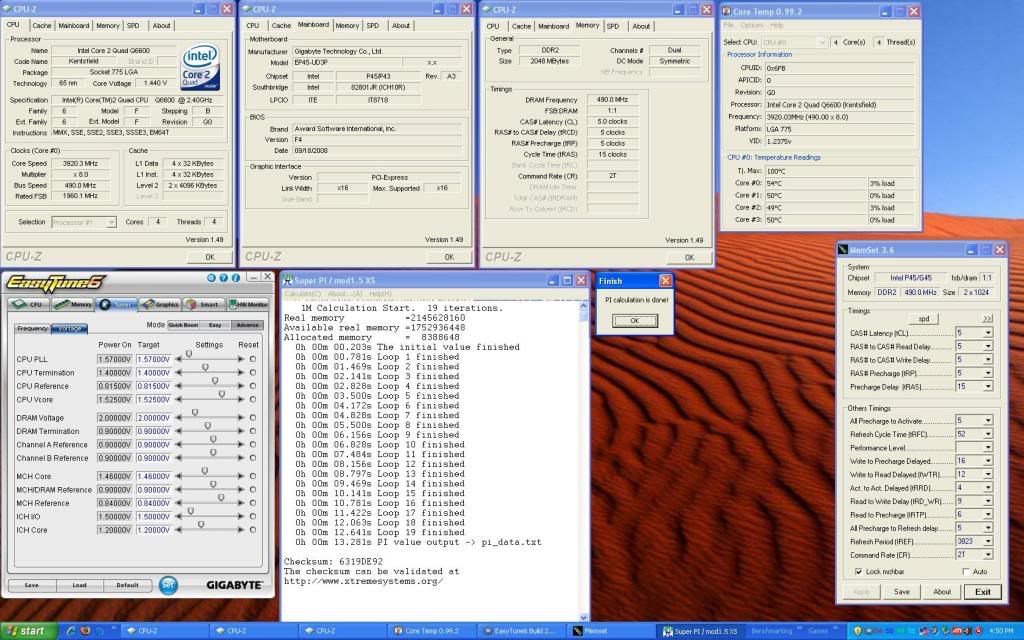
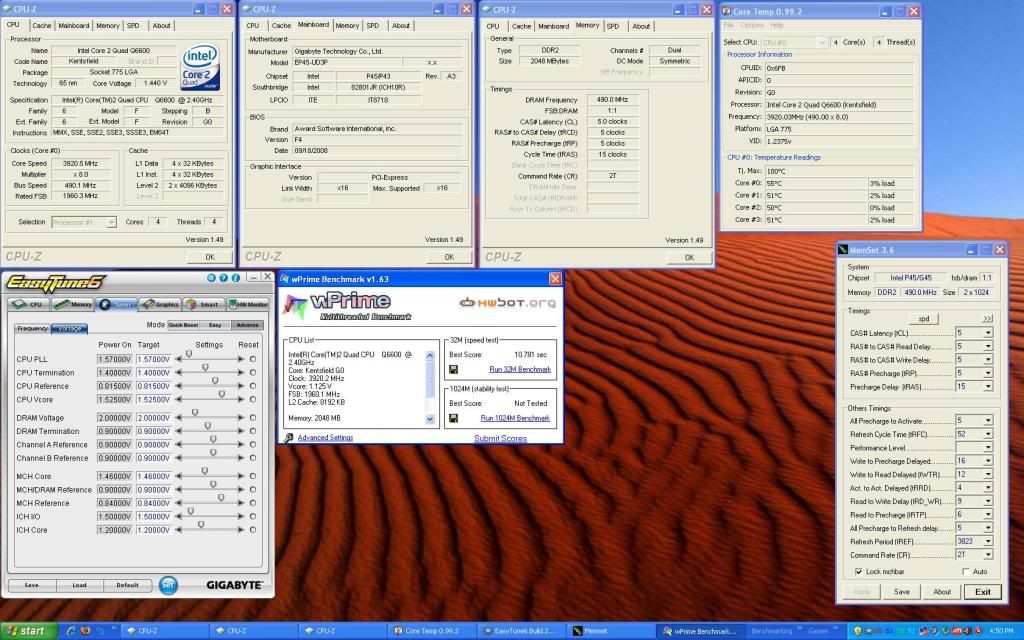
Test running OCZ PC2-9200 Flex II 4GB kit at DDR2-1200
SuperPi 8M (dual instances) and a single instance of SuperPi 32M only
450 CPU FSB, 3:4 DDR1200, timings 5-5-5-18 / 5-5-10-80-5 tRD 7, 2.04v (BIOS)
500 CPU FSB, 5:6 DDR1200 tRD 8

Last edited by pangingIII; 01-01-2009 at 08:34 AM.
 Posting Permissions


 Reply With Quote






Bookmarks